
















How to Perform a Car Android System Version Query and Identify the Mainboard
Performing an accurate Car Android system version query is essential for troubleshooting and maintaining your vehicle’s infotainment system. This expert guide walks you through checking system versions and identifying mainboards for Toparea, FYT, Norwayda, and XY AUTO models.
How to Perform a Car Android System Version Query on Toparea Systems
To begin your Car Android system version query on Toparea, start your vehicle and access the settings as described below.
Step 1: Power On and Access the Car Settings
- Start your vehicle and ensure the infotainment system powers on correctly.
- On the main screen, tap the “Settings” icon.
Step 2: Go to “About Device”
- Navigate to “General Settings” or “Car Settings”.
- Tap “About Device” to view version, serial number, and hardware info.
Step 3: Screenshot and Save the System Version Information
Capture the “About Device” page via screenshot or note the version number for future reference or support inquiries.
Common Version Sequences: T3, T3L, TQ, TS, T7, T5, YT series.
T3L System Screenshots


T3 System Screenshot

Performing Car Android System Version Query on FYT Infotainment
Conducting a proper Car Android system version query on FYT devices helps identify system versions for troubleshooting and updates.
Step 1: Power On and Access the Car Settings
- Start your vehicle and open “Settings”.
Step 2: Go to System Settings
- Select “System Settings”.
Step 3: Screenshot the Version Information
Find “Version Information” and screenshot or note it.
Common Version Sequences: 6025, 7731, 7862s, 7870, 9853, 5009.
How to Perform Car Android System Version Query on Norwayda NWD
Step 1: Power On
Start your vehicle and infotainment system.
Step 2: Access the Car Settings
Tap “Car Settings”.
Step 3: Go to System Settings
Select “System Settings”.
Step 4: Screenshot the Version Information
Screenshot “Version Information” details.
NWD System Screenshot

Performing Car Android System Version Query on XY AUTO Systems
Step 1: Power On
Start your vehicle and system.
Step 2: Access the Car Settings
Tap “Settings”.
Step 3: Go to System Information
Select “System Information”.
Step 4: Screenshot the Version Information
Screenshot or note the details.
Common Version Sequences: SD8227, AC8227L, 8257 to 8272.
XY AUTO System Screenshot

How to Identify the Mainboard of Your Car Infotainment System
Step 1: Power On and Open Settings
Start the car and tap the “Settings” icon.
Step 2: Inspect the Mainboard Markings
- Open the unit if possible, locate the largest board inside.
- Look for model numbers, chipsets (e.g. “RK3326”, “T3L”, “Rockchip RK3560”).
- Check manufacturer logos: Toparea, FYT, NWD, XY AUTO.
- Note serial numbers printed or on stickers.
Step 3: Match Features and System Version
- Cross-check system version with mainboard markings.
- Identify display outputs and connectivity ports (USB, HDMI, LVDS, CAN Bus).
Common Mainboard Photos
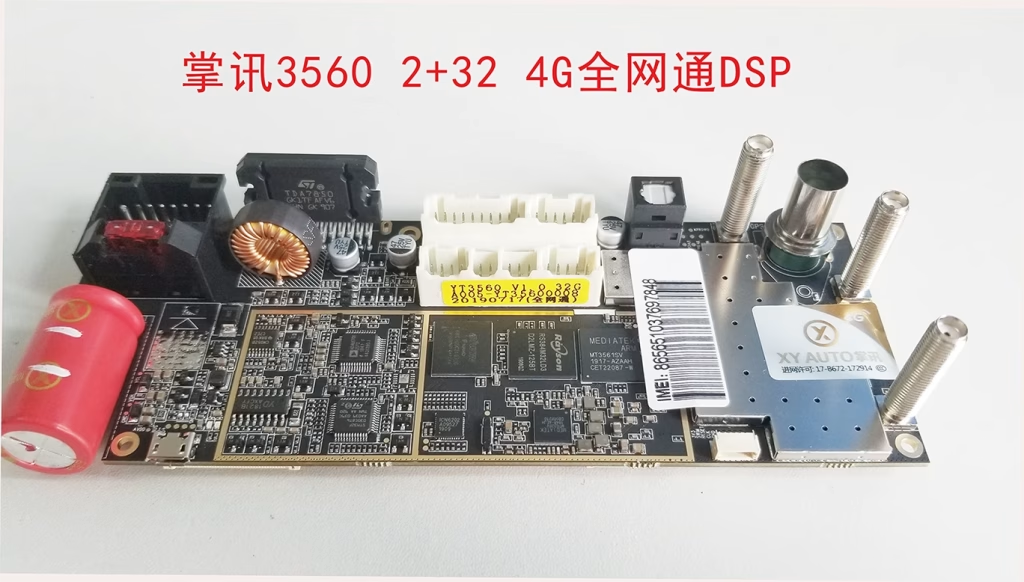
XY AUTO 3560 Mainboard

T3L Mainboard

FYT Mainboard

NWD Mainboard
Step 4: Confirm the Mainboard Model
- Consult user manuals or datasheets.
- Search manufacturer websites by model or chipset number.
Қорытынды
This guide enables you to perform a thorough Car Android system version query and identify the mainboard of your car infotainment system, aiding in troubleshooting and upgrades for Toparea, FYT, NWD, and XY AUTO.
Professional Remote Car Android System Repair by FixMyDash
If you need expert help with your car’s infotainment system or mainboard identification, FixMyDash offers reliable remote repair services worldwide. Contact us for fast diagnosis and custom solutions.